Flux Blog

News, resources, and company updates

AI Auto-Layout Winter Update

AI Auto Layout’s Winter Update delivers cleaner, more human-like routing with faster, more reliable results. It handles most of the routing workload so you can focus on the critical parts of your PCB design.

|
November 20, 2025
Thank you! Your submission has been received!
Oops! Something went wrong while submitting the form.
EasyEDA vs. Flux

EasyEDA vs. Flux

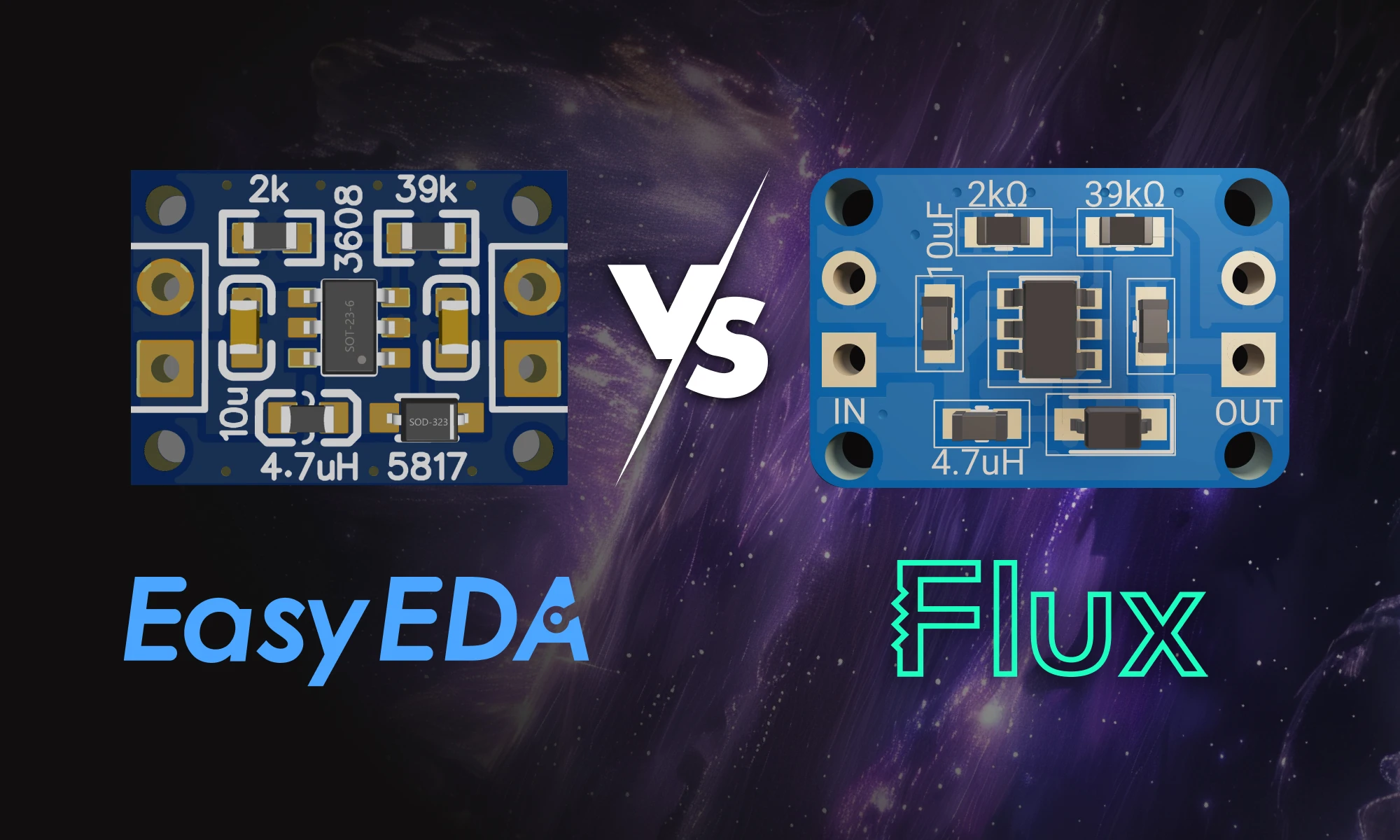
If you’re using EasyEDA and are thinking of making the switch to Flux, learn how the two platforms differ and why Flux might be the next step in elevating your PCB design experience.
If you’re using EasyEDA and are thinking of making the switch to Flux, here’s how the two platforms differ and why Flux might be the next step in elevating your PCB design experience.

What EasyEDA and Flux Share in Common

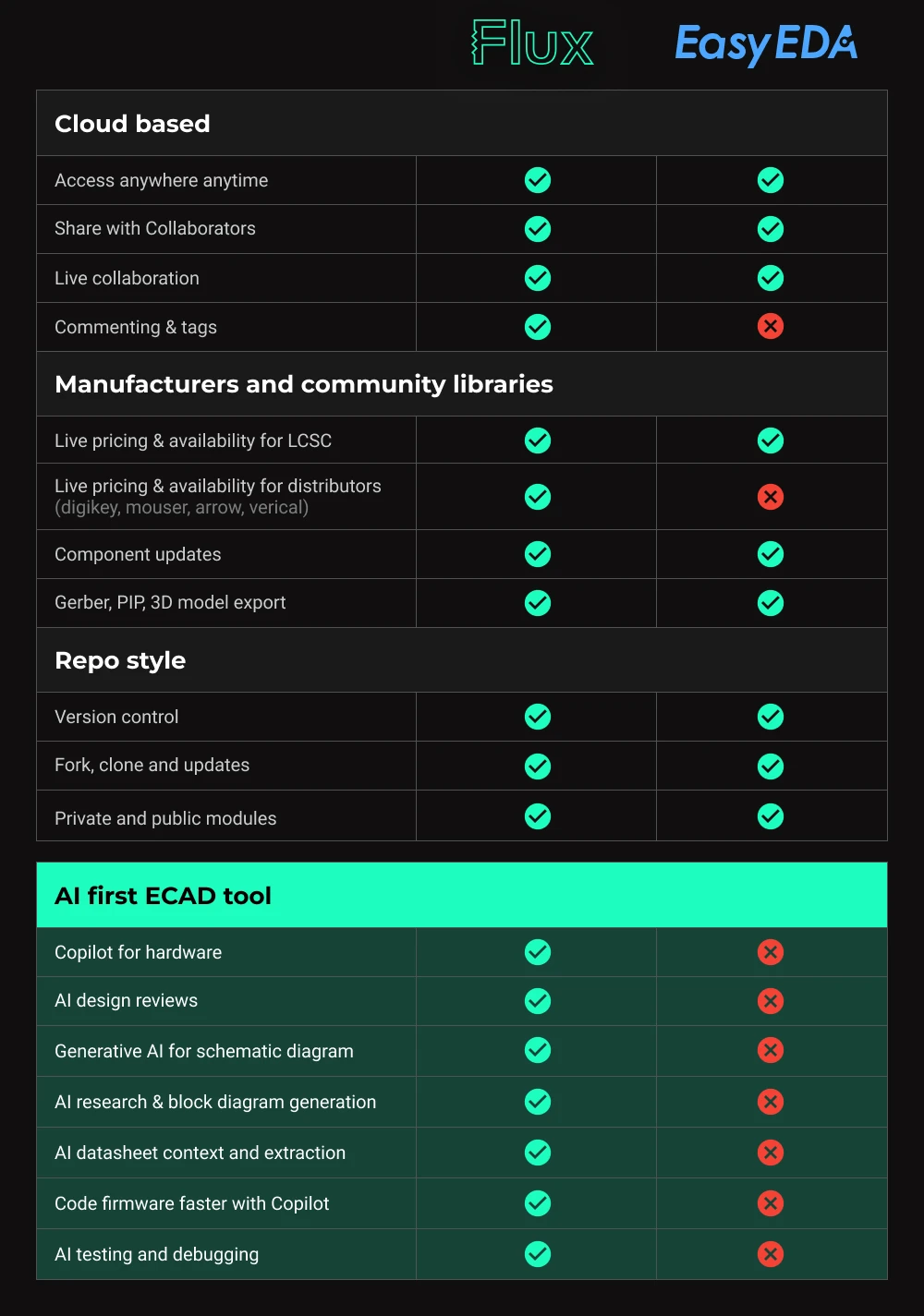
Flux and EasyEDA share several benefits that have become essential to hardware designers, particularly being cloud-based. These shared features have revolutionized how designs are accessed, shared, and managed:

  • Cloud-based – Access your projects from anywhere and share them with a simple click, no local installs needed.
  • User-generated library of parts – Eliminate the hassle of downloading libraries by tapping into a cloud library that’s always available and up to date.
  • Automatic version control – Never worry about manual file versions again. Like Google Docs, you can track changes, see who made edits, and revert to previous versions instantly.
  • Live pricing and availability – Both platforms offer real-time part data for LCSC components, but Flux expands this by offering pricing and availability for all major distributors.
  • Modules and public designs – While both platforms allow using community-made modules, Flux’s dynamic modules adjust automatically based on your schematic and stackup, streamlining design reuse.

Yet, it’s in their differences that Flux shines, offering unmatched speed, innovation, and future-forward capabilities that transform the PCB design landscape.
EasyEDA and Flux: Key Differences

1. Built For the Future

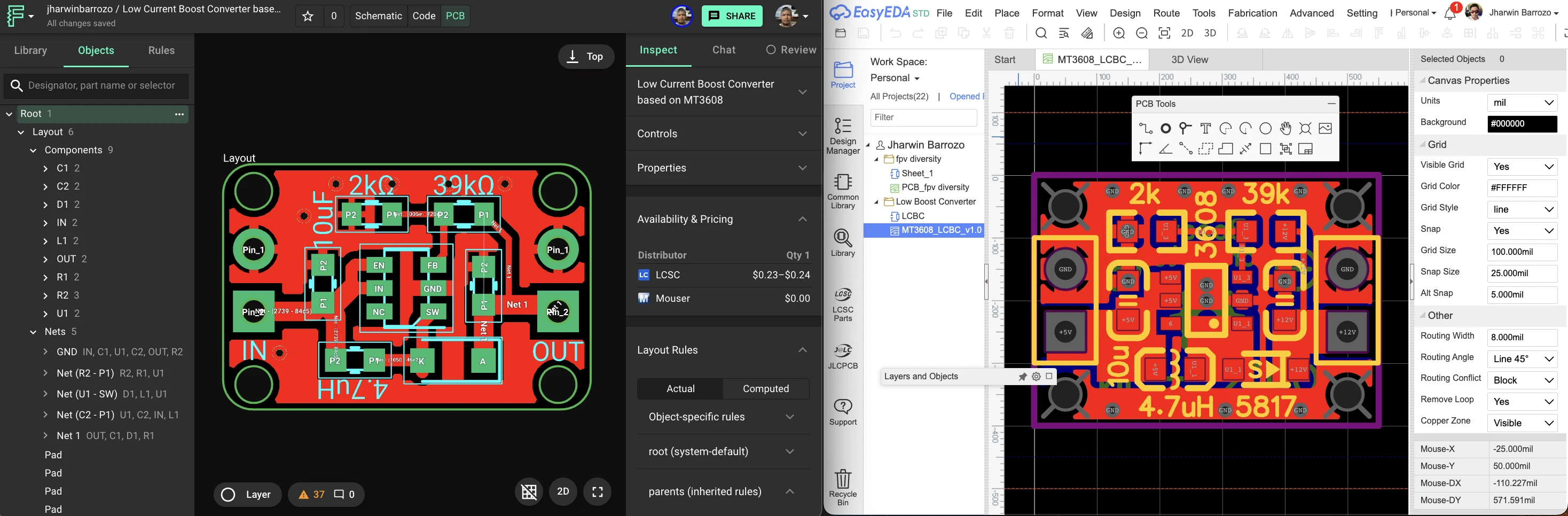
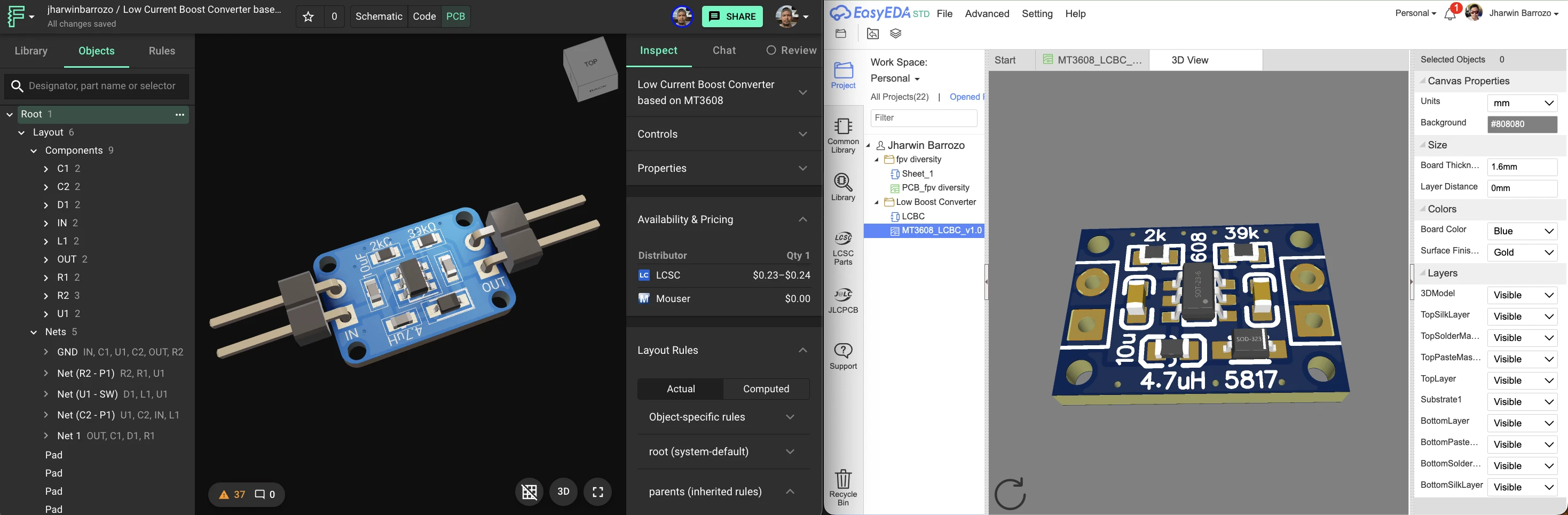
Side by side comparison of EasyEDA and Flux PCB design tool. The project is a Cheap and low-profile 12V boost converter based on MT3608 for low current applications. Maximum current 30mA
  • Flux is designed with the future of hardware design in mind. Completely browser-based, it continues to push the envelope with AI integration, real-time collaboration, and workflows that scale effortlessly. Whether you’re a solo maker or part of a large hardware team, Flux provides the tools you need today, with a vision for tomorrow’s designs.
  • EasyEDA: A great choice for hobbyists and smaller projects, EasyEDA excels at simplicity but lacks advanced tools like AI-driven workflows or real-time collaboration features. It’s primarily suited for small to medium projects that don’t demand extensive scalability or complex team interactions.
Copilot: AI-Powered Design Assistant
Screenshot of a chatbot interface with a purple gradient background, showing Copilot's responses to user queries about hardware design. The Copilot chatbot introduces itself as a tool for assisting with hardware projects, and users ask questions related to PCB design, architecture options, and building schematics using Flux.

Flux Copilot is the industry’s first AI-powered design assistant integrated into a PCB design tool. By understanding schematic designs, component lists, and datasheets, Copilot offers a wealth of capabilities that can reshape how you approach hardware design.
  • Generate Architecture Diagrams – Leverage AI to rapidly generate architecture diagrams based on your specific product requirements, ensuring an optimal selection of components and design decisions.
  • Research Components Faster – AI analyzes datasheets and suggests components that match your project, dramatically reducing time spent researching.
  • Perform AI Design Reviews – Flux Copilot reviews your designs for overlooked details like missing decoupling capacitors or pull-up/down resistors, saving you from costly errors.
  • Conversational AI – The Copilot interacts with your hardware project and adapts based on your input. From architecture to part selection, the possibilities are as limitless as your imagination.

2. Forward-Thinking & Intuitive UI

Side by side comparison of EasyEDA and Flux PCB 3D preview tool. The project is a Cheap and low-profile 12V boost converter based on MT3608 for low current applications. Maximum current 30mA

EasyEDA utilizes a traditional ECAD user interface familiar to many designers, with menus, tools, and pop-up windows that follow a conventional layout. This structure works well for many users, particularly those accustomed to classic design tools. However, as projects grow in complexity, navigating through multiple menus and pop-ups can slow designers down, adding extra steps and manual interactions that can disrupt the design flow.

In contrast, Flux is designed with a modern, forward-thinking user experience that streamlines the entire design process. By eliminating the need for excessive toolbars and manual file management, Flux provides a seamless, cloud-based environment where designers can move between schematic, PCB, and simulation views without interruptions. The interface is sleek, responsive, and optimized for fast, intuitive design workflows.

  • Minimal clutter – Flux simplifies the UI by reducing unnecessary pop-ups and menus, focusing on the essentials for a smoother design experience.
  • Real-time collaboration – Share your work instantly, without exporting files or dealing with external applications. Everything happens in one unified workspace.
  • Integrated tools – With Flux, schematic editing, PCB layout, and simulation are all accessible within the same flow, ensuring that your project stays connected and updated without having to switch between windows.

3. First-in-Class Customer Support

An old man holding a PCB board in front of his computer, suggesting he got a good customer service from using Flux, a PCB design tool

Flux not only provides a browser-based platform where new features and fixes are deployed instantly, but it also offers dedicated, first-class support that ensures your design process is always smooth and productive.

  • Responsive Centralized Support – Our support team is available anytime and provides feedback directly to the product team, ensuring rapid response to any questions or issues.
  • Active Slack Community – Flux has an engaged community that’s ready to assist with design questions, offer feedback, and even collaborate on projects. Join the conversation and connect with fellow designers.

Ok, I’m ready. How do I make the switch?

Making the switch to Flux is easy. Create a Flux account, follow the EasyEDA to Flux migration tutorial to get your projects into Flux, or follow this video tutorial:

Frequently Asked Questions

Is a Web-based app really performant?

  • Yes. Backed by a powerful 3D WebGL rendering engine that supports very large projects, we take performance seriously. Plus the Web comes with special powers, like real-time updates and seamless collaboration.

I don’t want a bunch of people in my design file...

  • Just like Google Docs, files are private unless you choose to share them with others. This means that you choose how collaborative you want to be within Flux. Sharing Flux projects has a lot of benefits: you can get instant feedback via comments directly in your design, so that means no more exporting PDFs and consolidating feedback.

I don’t have time to migrate my part library...

  • Flux has a community generated part library so you should be able to find the parts you need. We also support importing KiCAD format parts should there be anything missing. If you need help, feel free to request parts in our Slack Community in the #request-a-part channel or request parts using this form.

How much does Flux cost?

  • Flux has a free trial that is fully featured, meaning you can do everything the pros do right out of the box. You can learn more about pricing here.

How do I get help if I get stuck?

Are there any educational discounts?

  • Yes! If you’re a student or an educator you can access our professional tier for free by signing up with an edu email.
|
October 17, 2024
Flux vs. KiCad

Flux vs. KiCad

KiCad revolutionized PCB design by making it accessible to everyone. Flux builds on that foundation, offering a browser-based, AI-powered platform that takes your PCB design experience to the next level.

If you’re a KiCad user considering a switch to Flux, you might be wondering how the two platforms compare. To help you decide, we’ve broken down the key differences that set Flux apart from KiCad and how it can streamline your design process.

1. Get started with minimal configuration

In KiCad, it can take a while to configure your project to get started. Even when you find a reference project, you still need to go through several steps to import the project, libraries, and everything you need get going.

In Flux, all you have to do is open a new project and everything is ready to go! What’s more - all public projects, parts, and modules can be forked and built upon with the click of a button. Similar to GitHub, Flux has been built with reusability in mind from the very beginning.

2. All-in-one workflow that stays in sync

In KiCAD, library management, schematic editing, PCB editing, and simulation can feel like completely different flows. That can make it hard to keep track of everything and make sure your project stays in sync.

In Flux, the schematic editor, BOM, PCB editor, and simulator all work in one workflow that stays in sync in the browser. There’s also a version control system that makes it easy to revert changes.

3. Library management that just works

In KiCad, you have to maintain multiple libraries which can become extremely time-consuming to keep up to date. When sharing KiCAD designs sometimes projects will break because the reference library isn’t linked.

In Flux, there’s a single unified library that’s being constantly updated and improved upon by the community. This allows you to easily use other people’s vetted parts instead of making your own.

  • Parts can contain a footprint, 3D model & other assets, real-time availability & pricing, simulator models, infinite properties, documentation, internal schematic diagrams and more.
  • Whenever parts you’re using are updated, you’re notified and given the option to accept or reject part updates. This guarantees your parts are always error-free and up to date.
  • If you can’t find the part you’re looking for, there are few different methods for creating parts:

4. Flux Copilot has your back

Screenshot of a chatbot interface with a purple gradient background, showing Copilot's responses to user queries about hardware design. The Copilot chatbot introduces itself as a tool for assisting with hardware projects, and users ask questions related to PCB design, architecture options, and building schematics using Flux.

Flux Copilot is the industry's first AI-powered hardware design assistant integrated into a PCB design tool. With its ability to understand schematic designs, component lists, connections, and part information from datasheets, Copilot offers a wealth of knowledge and capabilities that can transform the way hardware design is approached.

  • Generate Architecture Diagrams - Flux transforms architectural design by leveraging AI to rapidly generate and evaluate a wider range of options against your specific product requirements, ensuring a more effective selection process that leads to optimal outcomes.
  • Research Components Faster - One of the most time-consuming tasks in hardware development is researching and selecting the right components. Copilot streamlines this process by using AI to analyze datasheets and suggest components that meet your project's specific requirements.
  • Review Designs - Leverage Copilot’s understanding of your project to perform AI Design Reviews, ensuring you haven't overlooked any crucial details like missing decoupling capacitors or pull up/down resistors.
  • Copilot is a conversational AI that understands your hardware project, so the use cases are really only limited by your imagination. Check out this list of our top 20 Copilot Prompts to get inspired.

Share projects & get feedback quickly

In KiCAD, files remain on your computer and sharing and getting feedback often involves sharing screenshots via emails and Slack conversations. Version control is also very difficult, especially when working with others.

In Flux, sharing with contractors, collaborators, clients, and other stakeholders is as easy as sharing a link.

  • Flux works similar to Google docs. Invite others to collaborate, control permissions, and drop comments right where the action is.
  • Automated version control makes it easy to track every single change that you or a collaborator makes and revert the document to a previous state.
  • Flux has an active community of experts who are ready to give design feedback. Feel free to join the Slack Community.

5. Best-in-class support

Two individuals wearing blue shirts collaborate while working on a laptop. One person types on the keyboard while the other looks over his shoulder, both focused on the screen.

With KiCAD, like all open source software, there is support by community members & contributors which is awesome! However, without centralized support, fixes and features can take easily up to a year.

With Flux, you have access to browser-based software where fixes and new features are instantly deployed to all users and a platform that’s updated frequently based entirely on your feedback.

  • Our centralized support team is first class, providing assistance anytime - anyday and sends your feedback directly to our product team.
    • Just send us an email if you ever have any questions!
    • If you ever run into a bug or want to request a feature, you can provide feedback in our feedback portal.
  • Our Slack community members also assist with answering questions, getting second pair of eyes, and sometimes even, getting a second pair of hands. Join our community.

Ok, I’m ready. How do I make the switch?

Making the switch to Flux is easy. Create a Flux account, follow the KiCad to Flux migration tutorial to get your projects into Flux, or follow this video tutorial:

Frequently Asked Questions

Is a Web-based app really performant?

  • Yes. Backed by a powerful 3D WebGL rendering engine that supports very large projects, we take performance seriously. Plus the Web comes with special powers, like real-time updates and seamless collaboration.

I don’t want a bunch of people in my design file...

  • Just like Google Docs, files are private unless you choose to share them with others. This means that you choose how collaborative you want to be within Flux. Sharing Flux projects has a lot of benefits: you can get instant feedback via comments directly in your design, so that means no more exporting PDFs and consolidating feedback.

I don’t have time to migrate my part library...

  • Flux has a community generated part library so you should be able to find the parts you need. We also support importing KiCAD format parts should there be anything missing. If you need help, feel free to request parts in our Slack Community in the #request-a-part channel or request parts using this form.

How much does Flux cost?

  • Flux has a free trial that is fully featured, meaning you can do everything the pros do right out of the box. You can learn more about pricing here.

How do I get help if I get stuck?

Are there any educational discounts?

  • Yes! If you’re a student or an educator you can access our professional tier for free by signing up with an edu email.
|
September 27, 2024
5 Common Mistakes Working with PCB Contractors

5 Common Mistakes Working with PCB Contractors

In this post, we’ll explore five common mistakes companies make when contracting PCB design and how you can avoid them by using tools like Flux to keep your project on track, from concept to completion.

PCB design is complex, and when you’re relying on external partners, even small missteps can lead to costly reworks, missed deadlines, or designs that aren’t manufacturable. Luckily, many of these headaches can be avoided with the right tools and practices.

In this post, we’ll explore five common mistakes companies make when contracting PCB design and how you can avoid them by using tools like Flux to keep your project on track, from concept to completion.

1. Not Setting Clear Goals

One of the biggest mistakes teams make when outsourcing PCB design is failing to set clear, detailed goals from the start. Without well-defined functional requirements, timelines, budgets, and constraints, it’s easy for the project to drift off course, leading to miscommunication and unmet expectations.

Clear goals ensure that both you and your contractor are aligned from day one. Without them, you risk costly delays, unnecessary revisions, and potentially ending up with a design that doesn’t meet your needs.

How to set clear goals:

  • Be as specific as possible about your functional requirements. Clearly define the purpose of the PCB and the problem it solves. For example, if the PCB is for a fitness tracker, describe its use and the key features it must support (e.g., Bluetooth, heart rate sensor, and rechargeable power management).
  • Key Inputs and Outputs: Specify the major components and how they interact. For example, if your PCB interfaces with an optical heart rate sensor and Bluetooth module, make sure your contractor knows the technical details from the start.
  • Set a timeline for each phase of the project, along with the expected quantity of boards.
  • Discuss the budget upfront to avoid misunderstandings later.
  • Highlight any constraints, such as size, materials, or power consumption limits (e.g., max size of 40x30mm, with power consumption not exceeding 200mW).
  • Define the scope of work: The scope of work outlines the tasks and responsibilities of your contractor. Are they only reviewing your design, or will they be making revisions? Clarify the level of involvement you expect. For example:
    • Will the project involve prototyping or mass manufacturing? The scope will change based on the production level.
    • Determine who is responsible for design iterations—will the contractor propose improvements or focus on implementing your feedback?

While clear requirements are critical, it’s also important to give the contractor room to innovate where it makes the most impact. For instance, allow flexibility in areas like power optimization, component placement, or alternative materials, so long as they meet the core functional requirements.

By using a tool like Flux, you can streamline this process even further. We’ve created a Flux Project Requirements Template that includes all the properties you need to define your PCB design requirements. This not only makes it easy for contractors to fill out, but Flux Copilot can also use these inputs to evaluate designs in real-time, ensuring your goals are met without constant back-and-forth.

{{insert-project-requirement-template}}

2. Not Giving Your Contractor a Head Start

Providing your contractor with a head start can make a huge difference in the success of your PCB design project. When you give them initial drafts, prototypes, or even early design ideas, it helps your contractor understand your vision more clearly, accelerates the process, and allows them to provide better insights from the outset.

By offering them something to build on, you create a collaborative dynamic where the contractor can refine your ideas rather than starting from scratch. This not only saves time but also leads to a more aligned and higher-quality end result.

How to set your contractor up for success:

  • Share a draft architecture, schematic, or layout. Even rough drafts give your contractor a strong foundation to work from and a better sense of your project’s direction.
  • Provide a rough layout of your PCB that places key parts (connectors, buttons, etc.) in the positions you want them. This ensures that your PCB will fit with the enclosure or mechanical design you've already developed, saving time on revisions later.
  • Create early prototypes to test out key concepts. These early iterations will help you understand what’s working and what needs adjustment.
  • Involve your contractor early: Early collaboration provides the contractor with valuable context about your project. This helps them understand the overall goals and challenges, making it easier to offer valuable input and solutions from the beginning
  • How Flux Helps: Flux goes beyond just collaboration—it can actively assist with generating design drafts and even brainstorm architectural concepts. If you’re unsure about part selection, Flux can research parts for you and suggest optimized components based on your project needs.

3. Not Communicating Frequently Enough

Communication is essential for any contracting relationship, but especially so in PCB design. Without regular check-ins and updates, issues can slip through the cracks, leading to costly revisions and delays later on. Frequent communication ensures that everyone stays on the same page, allowing you to catch potential problems early and keep the project moving forward smoothly.

The more you communicate, the better the end result will be. Contractors rely on your feedback and direction to align their work with your expectations, so regular updates are essential.

Tips for better communication:

  • Set expectations early on: From the beginning of the project, clarify how frequently you will communicate with your contractor. Establishing a cadence of weekly or biweekly check-ins ensures that both sides know when to expect updates and feedback.
  • Provide feedback quickly: Delays in communication can slow down the entire project. The faster you provide feedback on design iterations, the faster your contractor can make adjustments.
  • Track versions and changes: Use tools that allow you to keep track of design changes and version history. This helps ensure that everyone is working from the most up-to-date information and prevents misunderstandings.
  • Have a single source of truth: Centralize your communication and documentation in one place. Whether you use email, project management tools, or platforms like Flux, having a clear, accessible history of all communications helps prevent confusion.
  • How Flux Helps: Flux offers built-in version control, so you and your contractor can always track changes and ensure everyone is working on the latest design. With real-time collaboration and commenting, feedback can be shared directly on schematics, speeding up iterations and reducing miscommunication.

4. Not Limiting Scope Enough

Scope creep is one of the biggest threats to PCB design timelines. It's easy to add more features as the project progresses, but this often leads to delays, increased costs, and a more complicated design than initially intended.

By limiting the scope, you allow your contractor to deliver a usable, testable design in a shorter time frame, which you can iterate on based on real-world feedback. This approach minimizes risk and helps you avoid being stuck in long design cycles.

How to define a scope properly:

  • Focus on the MVP: Define the core features that your PCB must have for the first version. Prioritize getting a working prototype in hand as soon as possible.
  • Set a realistic timeline: For most projects, the first revision should be completed within 1-2 months. This keeps the project moving forward while allowing room for iterative improvements.
  • Test early, iterate faster: The faster you get a physical prototype, the sooner you can test it in real-world conditions. This early feedback will help you make informed adjustments in future revisions.
  • How Flux Helps: With Flux, you can rapidly prototype and iterate on designs, allowing you to test MVP versions quickly. Its cloud-based environment ensures that everyone involved in the project can give feedback on the first revision, and features can be added after initial testing.

5. Not Using the Right Tools

The tools you use to manage the PCB design process can make or break the success of your project. Without the right platform to set goals, manage versions, and facilitate communication, it’s easy for things to go off track. Miscommunication, outdated files, and scattered feedback can lead to confusion and delays. Using the right tools helps streamline collaboration, ensuring that everyone involved in the project is working efficiently and with the latest information.

{{insert-nico-video}}

Choosing a tool that supports seamless communication and version control can significantly reduce the friction that often occurs during outsourced PCB design.

Tips for selecting the right tools:

  • Design Tools: Use a tool that integrates everything—goal setting, collaboration, design, and prototyping—into one cohesive system.
  • Enable collaboration: Choose tools that make it easy for your contractor to work on drafts, suggest changes, and share updates without needing constant back-and-forth communication.
  • Track progress and changes: Version control is crucial to keeping everyone on the same page. Ensure you can track design changes and maintain a clear history of updates to avoid confusion or outdated designs.
  • How Flux Helps: Flux is designed to keep everything in one place. It offers version control, real-time collaboration, and integrated communication tools so you can easily manage feedback and keep track of design changes. Additionally, Flux’s Copilot AI assistant can help you generate draft schematics and early prototypes quickly, even if you’re not a PCB expert. This allows you to give your contractor a head start, saving time and ensuring better alignment from the beginning.

By avoiding these five common mistakes and utilizing the powerful capabilities of Flux, you can transform how you approach contracting PCB design. With clearer communication, faster iterations, and smarter design tools, you’ll not only save time but also ensure a successful outcome for your project. Sign up for Flux today!

|
October 10, 2024
High-Density PCBs just got easier with Smart Vias

High-Density PCBs just got easier with Smart Vias

Learn how smart vias in Flux automates the selection, placement, and configuration of vias during the PCB design process. This automation reduces the manual effort involved in via placement and significantly lowers the risk of misalignment and other common errors associated with traditional via management.

HDI Challenges

Even for the most experienced engineers, high density interconnect designs remain difficult. Some typical challenges are:

  • Using space efficiently while respecting manufacturing constraints,
  • Avoiding misalignment, which could lead to poor connectivity, or even complete circuit failure,
  • Avoiding congestion, which could lead to crosstalk and signal degradation.

Traditional EDA tools depend heavily on manual input for via placement. This makes density management primarily a function of hand-eye coordination. After placement, when you need to modify part of the design, you’ll quickly find yourself playing an unsolicited game of three-dimensional chess. Often, it’s easiest to simply wipe out the traces and vias, start over, and hope you won’t have to make another change to that part of your board.

After carefully laying everything out, the next big effort is to define and work through manufacturability, reliability, and cost considerations. In practice, this mountain of manual labor adds up. Designers are often forced to either compromise their design, risk overlooking mistakes, or delay their project.

Introducing Smart Vias

Smart Vias in Flux is an intelligent feature that automates the selection, placement, and configuration of vias during the PCB design process. This automation reduces the manual effort involved in via placement and significantly lowers the risk of misalignment and other common errors associated with traditional via management

If you’re routing a trace and need to connect across multiple layers, Flux will place a Smart Via that automatically populates with the best suited combination of vias (micro, blind, buried, or through-hole), in a stacked or staggered configuration, respecting your project settings. For example, you might only want to use microvias on outer layers and use through-hole vias for everything else. With Smart Vias, you can just start routing. When you switch from Top to Mid-Layer 1, a Smart Via will get you there. You can change your mind and go to Bottom and the Smart Via will dynamically reconfigure itself to support that connectivity.

Smart Vias are powered by Flux’s innovative Layout Rules. Rules allow you to set your preferences from a central place in the Stackup. They also allow for control of individual Smart Vias right down to the details, like the direction or spacing of a stagger. The result is a feature gets out of your way when you want and also lets you sweat the small stuff.

To make it even easier to get started, simply clone or fork any of these templates.

Making HDI a Breeze

Overall, Smart Vias addresses many of the challenges inherent in high density interconnect design and offers notable benefits to the designer.

  • Automated Via Management: Automates via selection and placement, saving designers significant time and effort by eliminating the need for tedious manual configurations.
  • Error Reduction: Reduces the likelihood of design errors, such as misalignment or improper via selection, leading to fewer design revisions and faster time-to-market.
  • Optimized Via Density: Ensures optimal via density, minimizing crosstalk and maintaining signal integrity.
  • Thermal Integration: Proactively integrates with thermal management tools, preventing vias from contributing to overheating, thereby enhancing the durability and longevity of the final product.
  • Enhanced Reliability: Increases the overall reliability and performance of the PCB, giving users confidence in the quality and robustness of their designs.
  • Efficient Design Process: It streamlines the entire design process, enabling users to achieve more accurate and efficient results.

Get Started with Flux

We think this is a huge improvement over existing workflows and we’re excited for you to use it. Interested in experiencing the new Smart Via feature? Get started with a template today!

|
September 12, 2024
5 PCB Design Mistakes That Could Ruin Your Board

5 PCB Design Mistakes That Could Ruin Your Board

Avoid costly errors in your PCB design with these expert tips! Discover the 5 most common mistakes in trace width, vias, power planes, and more. Learn how Flux’s AI Copilot helps you catch these issues early, ensuring your board is ready for manufacturing.

Let's dive in.
1. Improper Trace Width and Spacing

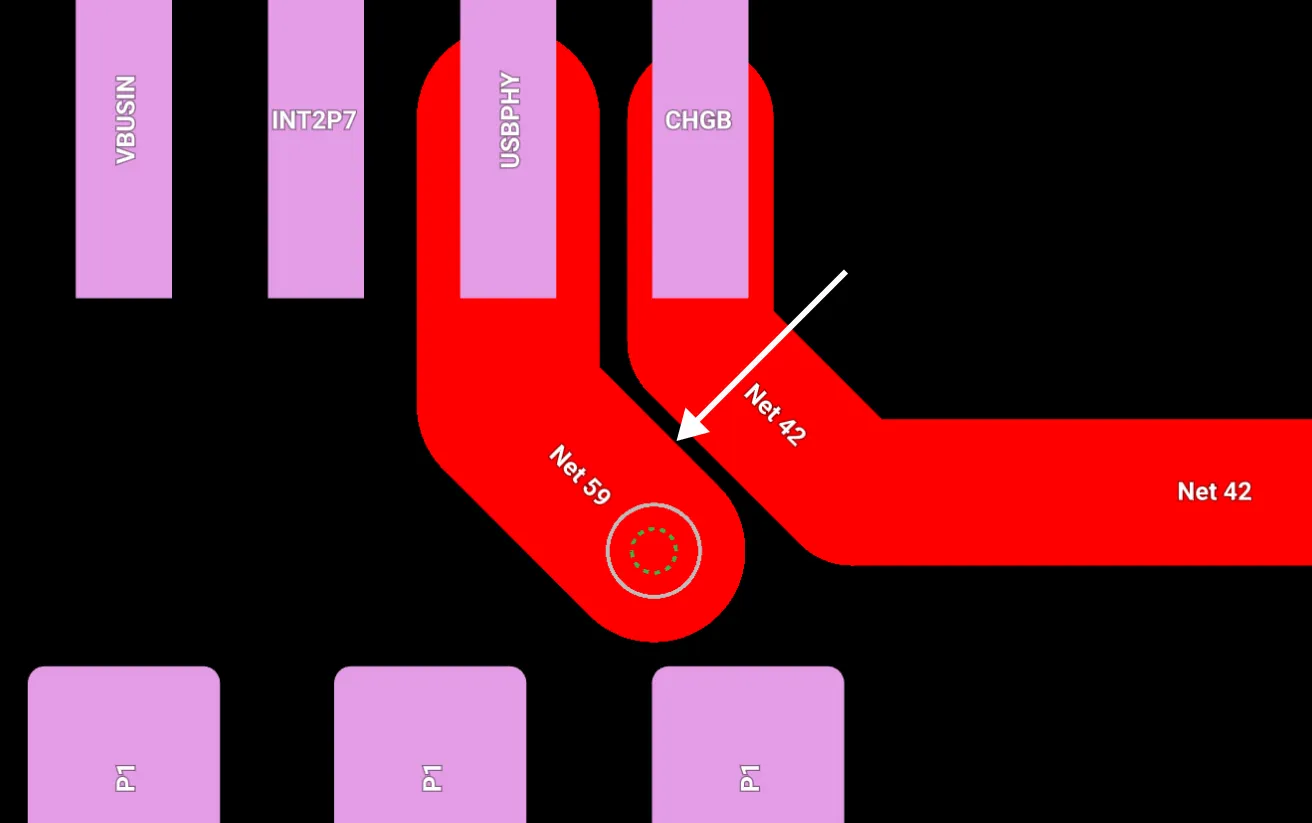
One of the most common mistakes in PCB design is not paying enough attention to trace width and spacing, especially in high-current or high-speed applications. If the trace is meant to carry high currents but it happens to be too narrow, it can result in thermal issues or even a failure of the circuit.

The width of your trace can be determined by things like; how much current it should carry without overheating or causing excessive voltage drops, Impedance control, and sensitivity of the signal running through it.

Flux makes routing high speed signals, such as USB data lines, easier by automatically performing coupled routing of the data lines (D+ and D-) and calculating the impedance of the pair based on the PCB stackup. This helps prevent reflections that can cause signal distortion, timing issues, and data corruption.

Flux Copilot can also help you calculate the appropriate trace width based on the current it needs to carry, while also considering the required impedance for high-speed signals. Just ask something like:

@copilot please recommend trace width for my VBUS.

Then copilot responses:

“For VBUS, typically a 5V supply in USB applications, let's assume a common scenario where you might anticipate a current of up to 1A. Using a temperature rise of 10°C, the general guideline for trace width on a 1 oz/ft² copper PCB is approximately 20-30 mils (0.5-0.8 mm) per amp of current.”
2. Overlooking Via Sizes

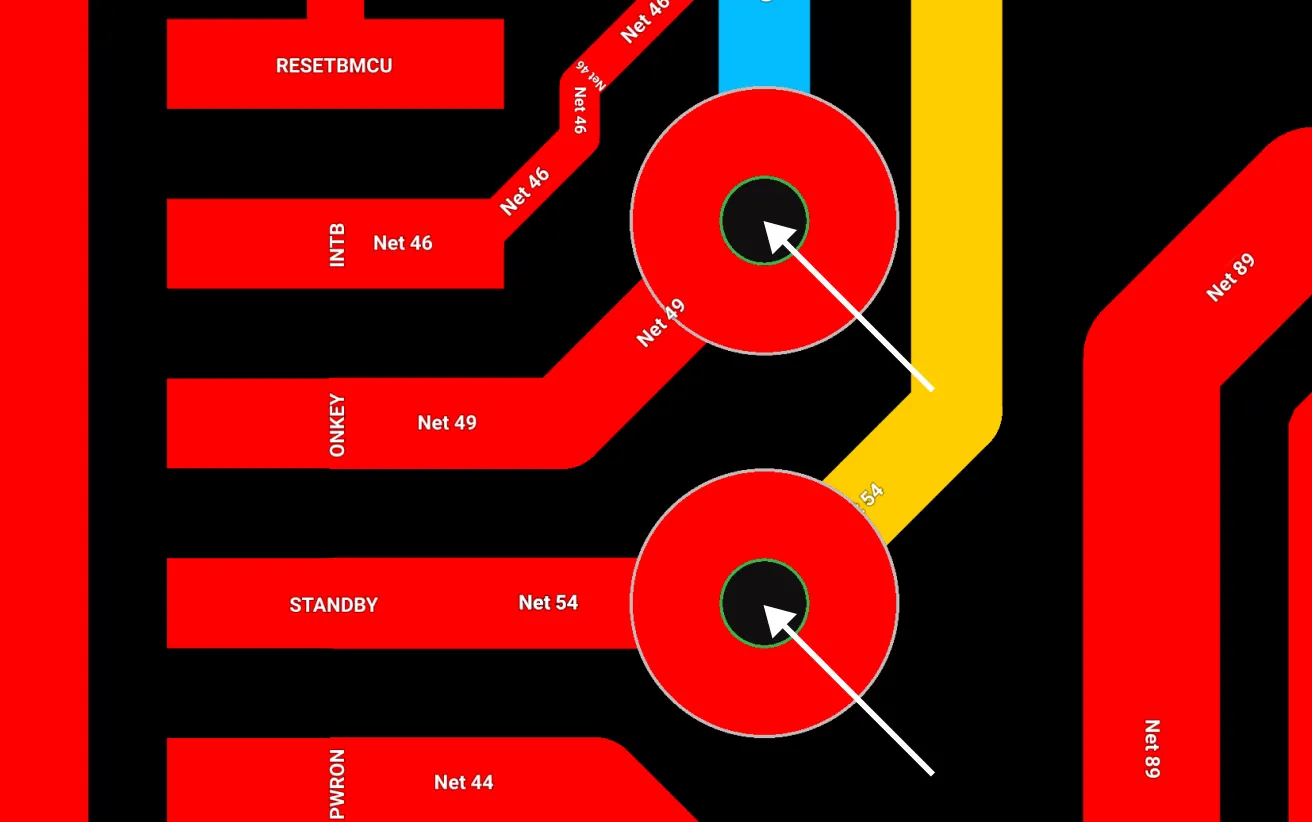
Vias are crucial for connecting different layers in a PCB, but choosing the wrong size or type can cause issues in both signal integrity and manufacturing. Blind, buried, and microvias are often used in high-density interconnect (HDI) boards, but these require careful consideration during design. For instance, microvias are perfect for compact designs, but if placed improperly, they can lead to poor layer transitions or increased inductance.

Flux let’s you set up your stackup where you add all the manufacturer capabilities. When you need some more advice on what stackup best suits your design, always feel free to ask copilot for some ideas, you could ask

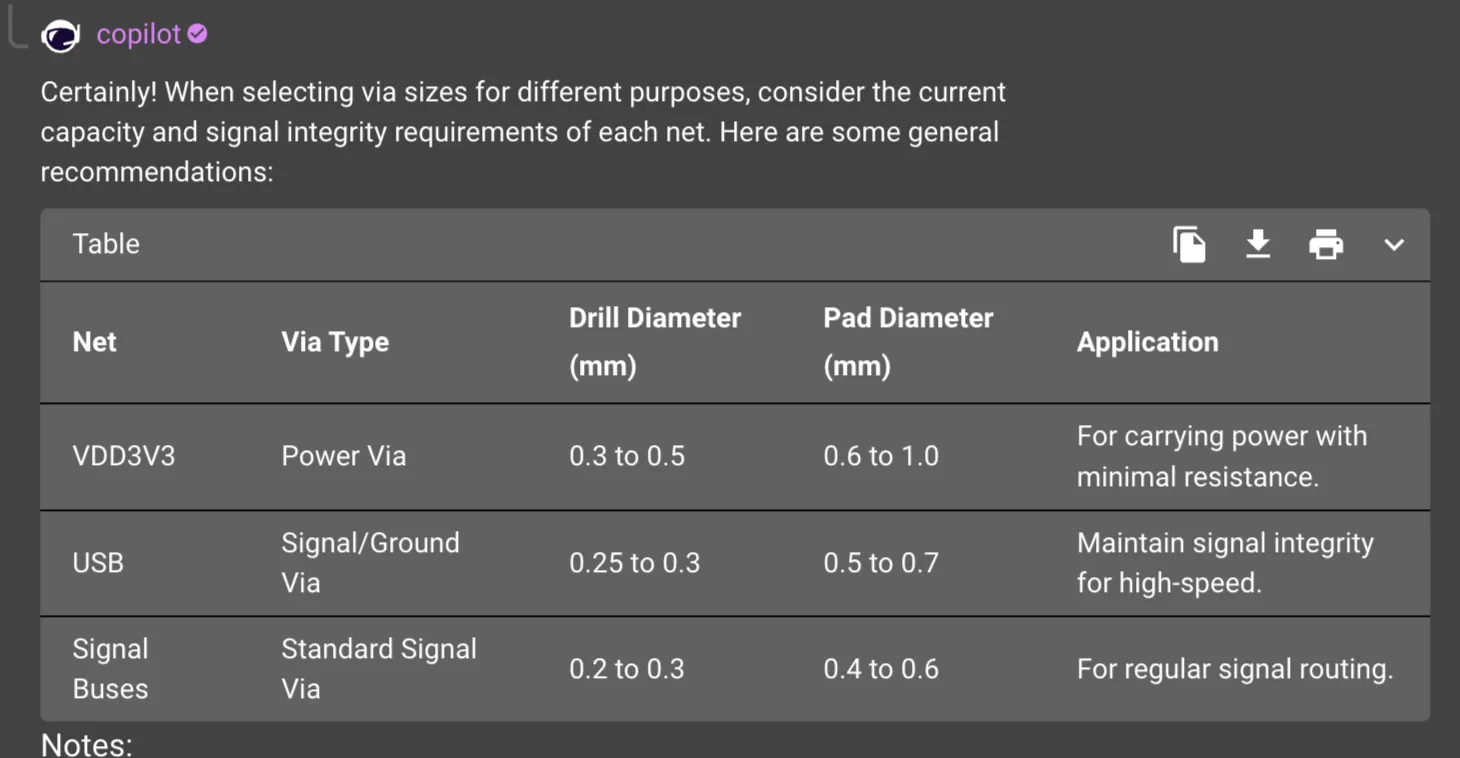
@copilot in a table format recommend vias sizes that i can use for my VDD3V3, my USB, and the other signal buses?

Then here's the copilot response,
If you're routing a high-speed differential pair, such as USB or PCIe, through multiple layers, via stubs can cause signal reflections that degrade signal quality. A rule of thumb is to ensure via lengths are minimized, or even better, use back-drilling techniques to remove stubs, especially in high-frequency circuits.

Moreover, not all manufacturers support the same via sizes, so checking with your manufacturer early in the design process can avoid headaches later. Make sure to adhere to their capabilities, including the aspect ratio limits (via depth to diameter), to avoid costly redesigns e.g. 20:1 for PCBWay.
3. Ignoring Power and Ground Plane Layouts

The layout of power and ground planes is another common area where mistakes are made. These planes act as the backbone of your circuit's stability, so a poorly designed plane can introduce noise, increase EMI, and degrade power delivery.

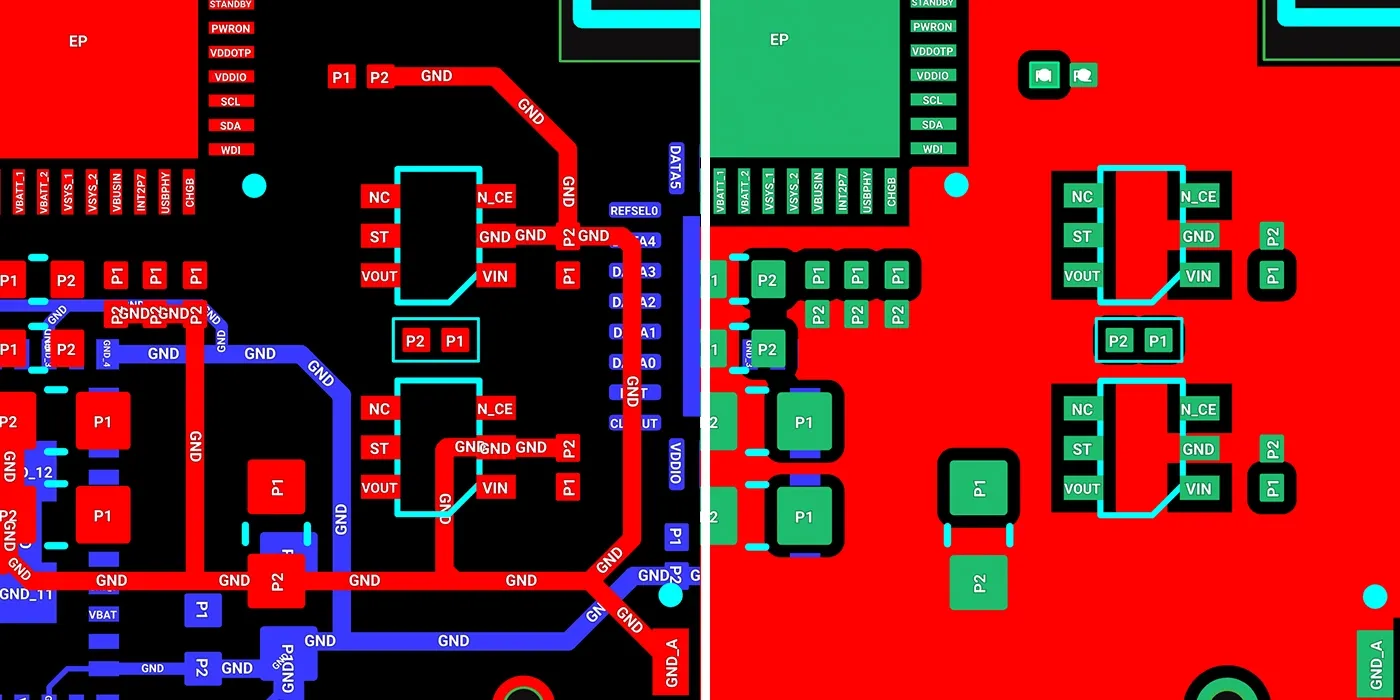
By default, Flux starts you off with a solid, contiguous ground plane since it is critical for minimizing noise and providing a low-impedance return path for high-speed signals. It is advisable to avoid creating islands which can cause severe signal integrity.

Example:
Imagine routing a high-speed signal across a split ground plane. The signal may cross the gap, creating a longer return path, which increases inductance and can lead to signal distortion or timing errors in critical circuits like clocks or data buses.

Similarly, power planes should be wide enough to handle the current required by each section of the circuit. For designs with sensitive analog circuits, it’s often a good idea to have separate power planes or split planes for analog and digital sections to avoid cross-talk and noise coupling.

4. Neglecting Design for Manufacturability (DFM)

Designing with manufacturability in mind is essential to ensure that your board can be built without issues. It’s easy to forget that the design rules you use in your ECAD tool may not fully align with your manufacturer’s capabilities, and this can result in delays or additional costs.

Flux provides users with pre-configured templates which align with most of the popular manufacture (e.g. PCBWay, JLCPCB, AISLER, LION Circuits, SEEED Studio and many more) capabilities so that users don’t have to worry about manually configuring things like trace widths, keepout, and other parameters. A good general rule of thumb is to always start new project using Flux manufacturer design rule templates

There are numerous DFM tips but here are some common ones to consider;

  • Don’t Place Parts Too Close to the Edge of the Board
    Many designers overlook the fact that most manufacturers require a certain clearance between the edge of the board and components. This clearance is needed for handling, tooling, and depaneling during assembly. If components like connectors or switches are too close to the edge, you risk damaging them during these processes.
  • Take into Account Manufacturer Capabilities
    Every manufacturer has specific limitations regarding trace width, spacing, via sizes, and the number of layers they can handle. Sending a design that exceeds these capabilities will either increase costs or lead to a failed production run. For example, your HDI board with 0.1mm microvias might not be feasible for a manufacturer specializing in simpler designs.
  • Too Closely Spaced Components
    Placing components too close together can lead to assembly issues, especially for automated pick-and-place machines. Components that are tightly packed can cause soldering problems like bridging, or they may not fit the soldering process at all. Always check for manufacturer’s minimum spacing requirements between components and account for heat sinks or thermal relief pads if necessary.

Using Flux manufacturer design rule templates will alert you when either of the manufacturer capabilities  are violated even before sending your files for manufacturing saving you time.

5. Improper Decoupling Capacitor Placement

Decoupling capacitors are used to filter out noise and provide a stable voltage to ICs, especially in digital circuits where rapid switching causes power fluctuations. However, placing these capacitors too far from the pins of the IC can render them ineffective. It is advisable to place these decoupling capacitors as close as possible to the IC without violating the minimum spacing a manufacturer can work with.

Example:
In a typical microcontroller design, you should place decoupling capacitors (such as 0.1µF and 1µF) as close as possible to the VCC and GND pins. Ideally, the capacitors should be placed on the same layer as the IC to reduce parasitic inductance and ensure faster response times. Failure to do so can cause power integrity issues, leading to glitches or resets in your circuit.

Additionally, use vias sparingly when routing decoupling capacitors. Each via adds inductance to the path, which reduces the capacitor's ability to suppress high-frequency noise.

Final thoughts

Before pressing that button to send your PCB design for manufacturing, it's worth taking a step back and performing a thorough review of your design. These design review steps can be quite a handful but what we have discussed above can be considered as the bare minimum. Flux manufacturer design rules makes it easy to ensure trace widths, appropriate via sizes, and manufacturer capabilities are considered when designing your board.

A thorough PCB design review can be a very daunting task, you might not be sure where to start or what checks to include in the review process. That is one of the reasons Flux’s AI lives in your project. You can use copilot to quickly check decoupling capacitors, power and grounding, ensuring compliance with industry standards, and even creating a stronger supply chain. To learn more about how you can use this tool, Sign up for Flux today.

|
September 19, 2024
STM32: Things You Need to Know

STM32: Things You Need to Know

Learn about STM32 microcontrollers, popular series, USB OTG, SWD, UART, and development tools. Find the right STM32 MCU and kickstart your projects.

Common Microcontroller Architecture

A typical microcontroller includes a processor, memory and Input/Output (I/O) peripherals on a single chip. Its components may be extended to include: Digital I/O, Analog I/O, Timers, Communication interfaces, Watchdog (a timer that is responsible for the detection of timed out or locked instruction).
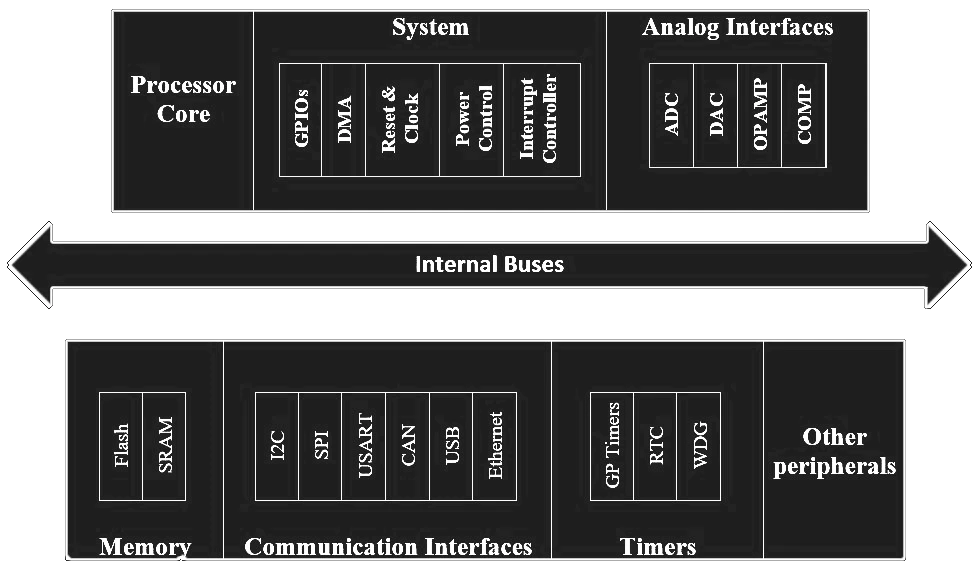
A processor is a little chip present in the device that has the role of arranging the instructions and order the outputs. The manufacturer defines the integrated peripherals and the hardware capabilities.

STM32 Microcontroller Families Overview

STM32 microcontrollers are divided into several groups based on their target applications. Below is a quick overview to help you choose the right MCU series:

  • High Performance (e.g., STM32F7, STM32H7): Optimized for processing-intensive tasks, such as graphics or audio processing.
  • Mainstream (e.g., STM32F1, STM32G4): Ideal for general-purpose applications, balancing cost and performance.
  • Ultra Low Power (e.g., STM32L4, STM32L5): Designed for battery-operated devices, focusing on efficiency.
  • Wireless (e.g., STM32WB): Includes built-in Bluetooth and IEEE 802.15.4 wireless communication.

Which STM32 MCU to Select?

  • STM32F0 (Mainstream)
    Based on the Arm Cortex-M0 processor, running up to 48 MHz. Optimized for low cost and designed to compete with 8-bit and 16-bit platforms.
  • STM32F1 (Mainstream)
    Based on the Arm Cortex-M3 processor, with a maximum clock speed of 72 MHz. A general-purpose microcontroller, widely popular for hobby projects.
  • STM32F2 (High Performance)
    Based on the Arm Cortex-M3 processor, with a clock speed of up to 120 MHz. Offers optimized performance for more demanding applications.
  • STM32F3 (Mainstream)
    Based on the Arm Cortex-M4 processor, featuring FPU and DSP instructions, with a speed of up to 72 MHz. Ideal for mixed-signal applications.
  • STM32F4 (High Performance)
    Based on the Arm Cortex-M4 processor with FPU and DSP instructions, running at up to 180 MHz. Known for high performance, frequently used in multimedia and industrial projects.
  • STM32F7 (High Performance)
    Based on the Arm Cortex-M7 processor with FPU and DSP instructions, running at up to 216 MHz. Pin-to-pin compatible with the STM32F4 series, making it easy to upgrade designs.

{{insert-project-1-here}}

  • STM32G0 (Mainstream)
    Based on the Arm Cortex-M0+ processor, with a speed of up to 64 MHz. Optimized for efficiency, competing with 8-bit and 16-bit microcontrollers.
  • STM32G4 (Mainstream)
    Based on the Arm Cortex-M4 processor with FPU and DSP instructions, running at up to 170 MHz. This series is the successor of the STM32F3 and is ideal for mixed-signal applications.
  • STM32H7 (High Performance)
    Based on the Arm Cortex-M7 processor, running at up to 480 MHz, with FPU and DSP instructions. Some models feature a second Arm Cortex-M4 co-processor, making them ideal for industrial automation and complex processing tasks.
  • STM32L0 (Ultra Low Power)
    Based on the Arm Cortex-M0+ processor, running at up to 32 MHz. Optimized for low-power applications, such as wearables and battery-operated devices.
  • STM32L1 (Ultra Low Power)
    Based on the Arm Cortex-M3 processor, with a speed of up to 32 MHz. Tailored for applications requiring both low power consumption and performance.
  • STM32L4 (Ultra Low Power)
    Based on the Arm Cortex-M4 processor with FPU and DSP instructions, running at up to 80 MHz. Designed for ultra-low power use cases with better efficiency.
  • STM32L4+ (Ultra Low Power)
    Based on the Arm Cortex-M4 processor with FPU and DSP instructions, with a clock speed of up to 120 MHz. Offers higher performance than the STM32L4 series while maintaining low power consumption.
  • STM32L5 (Ultra Low Power)
    Based on the Arm Cortex-M33 processor, running at up to 110 MHz. Provides enhanced security features and is optimized for IoT and battery-powered applications.
  • STM32WB (Wireless)
    Based on the Arm Cortex-M4 processor with FPU and DSP instructions, running at up to 64 MHz, alongside a second Arm Cortex-M0+ processor acting as a network processor. Supports Bluetooth 5 and IEEE 802.15.4 standards, making it ideal for wireless IoT solutions.

How to use STM32 MCU?

There are two ways to use an STM32 MCU which are:

{{insert-project-2-here}}

Essential STM32 Features for Development and Debugging

STM32 microcontrollers come equipped with several critical features that make development smoother, especially for embedded applications. Here are a few that stand out:

  • USB OTG (On-The-Go)
    Many STM32 MCUs, especially in the STM32F4 and STM32H7 series, offer USB OTG functionality. This feature allows the microcontroller to act both as a USB host and a device, enabling easy communication with peripherals like flash drives, keyboards, or sensors. USB OTG makes STM32 ideal for applications like portable devices or data loggers.
  • SWD (Serial Wire Debug)
    For debugging and programming, STM32 microcontrollers support SWD. This is a streamlined, two-wire alternative to traditional JTAG interfaces, making it more efficient while reducing pin usage. SWD allows developers to debug their code in real-time and monitor performance directly on the microcontroller.
  • UART (Universal Asynchronous Receiver-Transmitter)
    UART communication is available across almost all STM32 MCUs, allowing serial communication between the microcontroller and external devices like sensors, computers, or displays. This feature is particularly useful for applications requiring simple, low-overhead data exchange, such as data logging or wireless modules.
  • Debugging with STM32
    STM32 provides robust debugging options, supporting tools like ST-Link, which enables seamless flashing and debugging through SWD. Additionally, most development boards come with built-in debug interfaces, ensuring developers can quickly identify issues and optimize performance.

{{insert-project-3-here}}

Choosing the Perfect STM32 Development Board for Your Application

To get started with STM32, you’ll need a development board. Here are some of the top picks, whether you’re on a budget or seeking advanced features:

Nucleo Boards

  • Perfect for beginners, featuring built-in ST-Link debugger.
  • NUCLEO-F103RB – STM32F103 MCU with 128kB FLASH memory.

Discovery Kits

  • Include additional sensors and displays for prototyping.
  • STM32F407G-DISC1 – Ideal for multimedia projects with STM32F4.

Black Pill Board

  • Affordable, compact, and widely available on platforms like AliExpress.
  • Example: Black Pill with STM32F103C8T6 – Perfect for hobbyists looking for a cost-effective solution.

STM32 Software Tools and IDEs

Once you’ve chosen a development board, the next step is setting up the software. Below are some of the best free IDEs and tools to get started with STM32 programming:

  • STM32CubeIDE:
    Official IDE by STMicroelectronics. Cross-platform and integrates seamlessly with STM32CubeMX for configuration.
  • PlatformIO:
    A versatile development environment that supports multiple platforms, including STM32.
  • STM32duino:
    For those familiar with Arduino, this environment brings the Arduino experience to STM32 boards.
  • Keil MDK:
    Free for STM32G0, F0, and L0 series; an excellent option for smaller projects on Windows.

For IoT projects, consider Arm Mbed, a platform that supports cloud-based development and is optimized for low-power devices.

How to Get Started: A Step-by-Step Workflow

1. Setting Up Your Development Board

  • Connect the board to your computer via USB.
  • Install the STM32CubeIDE or your preferred IDE.
  • Verify the connection using the built-in ST-Link debugger.

2. Configuring Your Project with STM32CubeMX

STM32CubeMX simplifies the configuration process by generating initialization code. You can:

  • Select your microcontroller.
  • Configure pins, clocks, and peripherals through a graphical interface.
  • Generate C code, ready to use in STM32CubeIDE.

3. Write and Code Your First STM32 Program

Create a basic blinky” program to blink an LED. This is a great way to ensure everything is set up correctly.

#include <stm32f1xx.h>
int main(void) {    
    HAL_Init();  // Initialize the HAL Library    
    __HAL_RCC_GPIOC_CLK_ENABLE();  // Enable GPIO Clock        
    GPIO_InitTypeDef GPIO_InitStruct = {0};    
    GPIO_InitStruct.Pin = GPIO_PIN_13;    
    GPIO_InitStruct.Mode = GPIO_MODE_OUTPUT_PP;    
    GPIO_InitStruct.Pull = GPIO_NOPULL;    
    GPIO_InitStruct.Speed = GPIO_SPEED_FREQ_LOW;    
    HAL_GPIO_Init(GPIOC, &GPIO_InitStruct);        
    while (1) {        
    HAL_GPIO_TogglePin(GPIOC, GPIO_PIN_13);        
    HAL_Delay(500);
 }
}

Key Specifications and STM32 Pricing Overview

| Series | Core | Applications | Price Range | | :=== | :=== | :== | :== | | STM32F1 | Cortex-M3 | General purpose, hobby projects | $2 – $10 | | STM32F4 | Cortex-M4 | High-performance multimedia | $5 – $20 | | STM32H7 | Cortex-M7 | Industrial, IoT gateways | $8 – $30 | | STM32WB | Cortex-M4 + M0+| Wireless communication | $10 – $25 |

Common Challenges and How to Overcome Them

  • Problem: "The IDE doesn't recognize my board."
    Solution: Ensure drivers for the ST-Link debugger are installed. Check connections and firmware.
  • Problem: "I don't know which STM32 series to use."
    Solution: Start with STM32F1 or F4 series if you're a beginner. These series have abundant resources online.

{{insert-mark-video}}

Where to Buy STM32 MCUs and Development Boards

You can find STM32 MCUs and development boards from trusted vendors, such as:

  • Official STMicroelectronics website
  • Mouser Electronics and Digi-Key
  • AliExpress and Amazon for budget boards like the Black Pill

Why Choose STM32?

STM32 microcontrollers are an excellent choice for both beginners and advanced developers. They offer a wide range of features, low power consumption, and support for IoT, wireless communication, and industrial automation. With STM32Cube tools and free IDEs, you can build your projects faster and more efficiently.

Whether you’re working on a simple blinky LED project or a complex IoT solution, STM32 has the right series to fit your needs. Get your development board, set up your environment, and start building today!

FAQ About STM32 MCUs

Q: What is the best STM32 series for beginners?
A: The STM32F1 and STM32F4 series are great starting points, as they are well-documented and widely supported.

Q: Is STM32CubeIDE free?
A: Yes, STM32CubeIDE is free and available for Windows, macOS, and Linux.

Q: How much does an STM32 microcontroller cost?
A: Prices vary by series, with the STM32F1 starting around $2 and high-end STM32H7 costing up to $30.

Q: Is STM32 better than Arduino?
A: While Arduino is simpler and more beginner-friendly, STM32 offers more power, flexibility, and scalability. STM32 microcontrollers provide better performance with faster processing speeds, more peripherals, and lower power consumption, making them ideal for more advanced or professional projects. On the other hand, Arduino is great for quick prototyping and those new to microcontrollers.

Q: What are STM32 microcontrollers used for?
A: STM32 MCUs are used in a wide range of applications, including IoT devices, automotive systems, industrial automation, wearables, and smart home products. Their versatility makes them suitable for both high-performance tasks (like multimedia processing) and low-power applications (like battery-operated devices).

|
October 3, 2024